
The Company section under Settings in the sanctions.io Portal allows you to manage all user access within your organization. From here, you can invite new team members, assign or update their roles, control individual Monitoring access, and remove users who should no longer have access.
This feature ensures each team member has the appropriate permissions to perform their work while maintaining strong access control and account security.
In this article:
→ Company Accounts Overview
→ User Roles and Permissions
→ Manage Users (Invite, Edit, and Remove)
→ Users and API Token
Company Accounts Overview
The Company accounts table (under Settings → Company → Accounts and SSO) lists everyone with access to your workspace, along with:
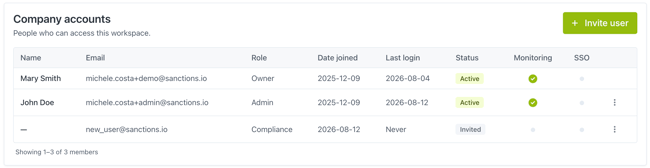
- Name – the user's display name (shown as "—" until they complete account setup)
- Email – the email address associated with their account
- Role – their assigned role (Owner, Admin, Compliance, Integration, or Auditor)
- Date joined – when the user was added to the account
- Last login – the most recent time the user signed in
- Status – Invited or Active
- Monitoring – whether Monitoring access is enabled for that user
- SSO – whether the user is currently connected via single sign-on
Note: Last login records when a user signs in with their email and password. If a user signs in via SSO, Last login is updated as well. Session cookies have a default TTL of 2 weeks, meaning users are forced to log in again after 2 weeks.
User Roles and Permissions
sanctions.io supports five user roles: Owner, Admin, Integration, Compliance, and Auditor. Each role is designed to align with typical operational responsibilities within an organization.
Please note that Monitoring access only applies if Monitoring is included in your organization's subscription plan.
-
Owner
The Owner has the highest level of access and oversight, and this role is unique — each account can have only one Owner. This role is typically assigned to the primary account holder or the individual responsible for overall account ownership.
Permissions include:
• Full access to application features and solutions included in the organization's subscription plan
• Full control over user management, including managing Admin users
Account ownership transfer: The account owner role can't be changed directly in the Portal. To request a transfer, the current account owner must contact help@sanctions.io or their sanctions.io Account Manager. -
Admin
Admin has broad administrative capabilities but does not hold the unique privileges of the Owner. This role is typically assigned to team leads or individuals responsible for managing day-to-day account operations.
Permissions include:
• Full access to application features and solutions included in the organization's subscription plan
• Ability to support configuration, manage team members, and roles
Not allowed: Manage other Admin users (Owner-only permission) -
Compliance
The Compliance role is designed for users who regularly perform screening and monitoring activities as part of their compliance workflow.
Permissions include:
• Full access to Single Screening and Batch Screening
• Full access to Monitoring
Not allowed: Manage team members or company settings -
Integration
The Integration role is designed for developers who build and maintain systems that interact with the sanctions.io application. It provides the access needed to configure and manage integrations while restricting operational screening capabilities.
Permissions include:
• Access to API Settings, including API token management and webhook configuration
Not allowed: Manage team members or company settings, run screenings -
Auditor
The Auditor role is ideal for users who require visibility into auditing, reporting, and monitoring activities without the ability to perform operational or administrative changes.
Permissions include:
• Read-only access to Single Screening and Batch Screening results
• Read-only access to Monitoring entries, including review/audit alerts
Not allowed: Run screenings, manage Monitoring entries, download reports, manage team members and company settings
Users Comparison
| Permission / Capability | Owner | Admin | Compliance | Integration | Auditor |
|---|---|---|---|---|---|
| Unique role | ✅ Yes | ❌ No | ❌ No | ❌ No | ❌ No |
| Company settings |
✅ Full | ✅ Full | ⚠️ Read-only | ⚠️ Read-only | ⚠️ Read-only |
| Manage Users | ✅ All roles | ⚠️ Auditor, Compliance, Integration | ❌ No | ❌ No | ❌ No |
| API Settings | ✅ Yes | ✅ Yes | ❌ No | ✅ Yes | ❌ No |
| Single/Batch Screening access | ✅ Full | ✅ Full | ✅ Full | ❌ No | ⚠️ Read-only |
| Monitoring access | ✅ Full | ✅ Full | ✅ Full | ❌ No | ⚠️ Read-only |
| Manage Monitoring entries | ✅ Yes | ✅ Yes | ✅ Yes | ❌ No | ❌ No |
| Audit Monitoring alerts |
✅ Yes | ✅ Yes | ✅ Yes | ❌ No | ✅ Yes |
| Download reports | ✅ Yes | ✅ Yes | ✅ Yes | ❌ No | ❌ No |
Manage Users
Invite a New User
- Go to Settings → Company, then select the Accounts and SSO tab.
- Click + Invite user.
- In the Invite member dialog, enter the new user's email address.
- Select the appropriate Role from the dropdown.
- Choose whether Monitoring should be Enabled or Disabled.
- Click Send invite.
The invited user will receive an email with a one-time login code to access their account. Once they log in, their status will automatically transition from "Invited" to "Active" in the accounts table.
Edit a User's Role or Monitoring Access
- In the Company accounts table, locate the user you want to update.
- Click the ⋮ menu in the row, then select Edit.
- In the dialog, select the new Role.
- Toggle Monitoring access on or off.
- Click Save changes.
Permissions update instantly after the change.
Remove a User
- In the Company accounts table, locate the user you want to remove.
- Click the ⋮ menu in the row, then select Remove — or click Remove user from within the Edit dialog.
- Confirm by clicking Remove member.
Warning: This action cannot be undone. The user will lose access to the company account immediately and will need a new invite to rejoin.
Users and API Token
Each user has their own API token, which is automatically generated during account creation. API tokens are personal, and they are not shared between users.
API tokens serve two primary purposes:
- Track user usage: monitor and attribute activity to individual users for audit trails and reporting.
- Connect API integrations: authenticate and enable integrations, including the Screening API, Monitoring API, Salesforce Integration, and HubSpot Integration.
Please note that API token visibility depends on the user's role. Some roles may not have permission to view API Settings. Refer to the Users Comparison table for more information.
We're here to help!
If you have any questions or need more help, please contact our support team anytime!
- Chat: Available directly through the Help Center page
- Email: help@sanctions.io