
This guide explains how to configure your Adverse Media Settings in the sanctions.io Portal, and how those settings shape the results you see across Single Screening, Batch Screening, Monitoring, and the API.
What is the "Adverse Media Settings" feature?
Adverse Media Settings is the default template that sanctions.io applies whenever you screen for adverse media. It's not something you set per search — it's company-level configuration that determines how broad or narrow your adverse media results are, across every screening method. For entities you monitor, these settings also define the starting point and scope of ongoing monitoring.
Adverse media screening is a core part of KYC/AML and third-party risk workflows, but a one-size-fits-all search is often either too noisy (surfacing irrelevant hits) or too narrow (missing real risk). These settings give you direct control over both precision and coverage, so you can tune adverse media screening to your own risk appetite.
Topics Covered
→ How to Configure Adverse Media Settings
→ Confidence Score
→ Keywords
→ Countries
→ Languages
→ Lookback Window
Note: Adverse Media screening availability depends on your subscription plan; only users with the Owner or Admin role can change these settings; all other roles can view this section only.
This setting also does not affect sanctions and other watchlist (e.g., HRJ Lists, Crime Lists) confidence scores. Those continue to be determined by whatever score is set at the moment the search is run, or by what's configured in the Screening Template for batch searches.
How to Configure Adverse Media Settings
- Sign in at sanctions.io.
- Go to Settings → Company → Adverse Media Settings.
- Select the options you want for each parameter (confidence score, keywords, countries, languages, and lookback window).
- Click Save changes.
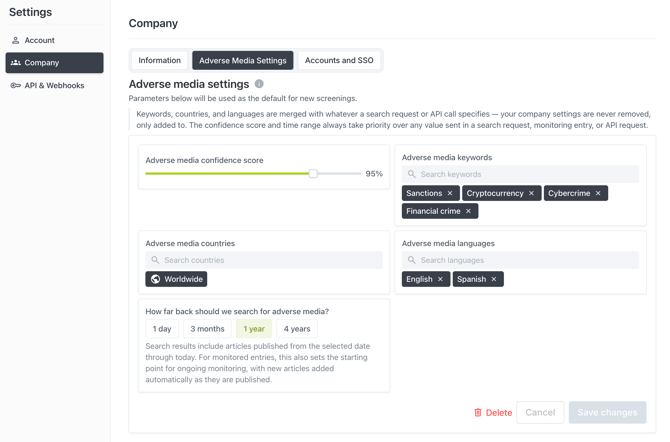
Note: Changes you make here apply to all new screenings going forward. They don't retroactively change results from screenings that already ran.
Confidence Score
Sets the minimum match confidence (88–99%) required for a result to surface as an adverse media hit.
- Higher threshold → fewer, more precise matches. Useful if your team is reviewing a high volume of screenings and wants to cut down on false positives.
- Lower threshold → broader coverage, at the cost of more results to review.
Keywords
Choose which risk categories sanctions.io screens for. You can select from 24 categories, including:
| Risk Category | Risk Category | Risk Category |
|---|---|---|
| Organized crime | Insider trading | Regulatory enforcement |
| ESG risk | Human rights abuse | Corruption |
| Drug trafficking | Law enforcement action | Crime (general) |
| Terrorism financing | Tax evasion | Sanctions |
| Illegal gambling | Environmental crime | Cryptocurrency |
| Human trafficking | Cybercrime | Sexual offenses |
| Antitrust violation | Bankruptcy/insolvency | Violent crime |
| Judicial action | Fraud | Financial crime |
Tip: Tailor your keyword selection to your actual risk exposure. For example, a crypto exchange might prioritize Cybercrime, Financial crime, and Sanctions; a bank might focus on Insider trading, Regulatory enforcement, and Fraud; a fintech onboarding SMBs might weight Bankruptcy/insolvency and Tax evasion; and an NGO or ESG-focused fund might prioritize Human rights abuse, ESG risk, and Corruption.
Countries
Restrict adverse media screening to specific countries, or leave it set to the default of Worldwide for global coverage.
Languages
Choose which languages sanctions.io searches for adverse media in. Six languages are supported: English, Spanish, French, German, Italian, Portuguese.
This is especially useful if you have a multinational customer base or need coverage of non-English-language adverse media.
Note: This setting controls which languages are searched, not translation. Results are returned in their original language; sanctions.io does not translate adverse media articles into English or any other language.
Lookback Window
Sets how far back sanctions.io searches for adverse media: 1 day, 3 months, 1 year, or 4 years.
Search results include articles published from your selected date through today. For monitored entries, this also sets the starting point for ongoing monitoring — new articles are added automatically as they're published.
Tip: A shorter lookback window keeps results focused on recent, relevant news. A longer window gives more thorough historical coverage but may surface older or less relevant stories.
We're here to help!
If you have any questions or require further assistance, please don't hesitate to reach out to our support team:
- Chat: Available directly in the Help Center page
- Email: help@sanctions.io