
sanctions.io goes beyond standard functionality by giving you the flexibility to build custom solutions using native Salesforce tools. Salesforce Flows allow teams to implement tailored automation that meets specific compliance and operational requirements.
This article provides a high-level overview of how Flows can be used to trigger sanctions screening, notify relevant users when alerts are created, and enforce compliance controls when screening criteria are not met.
Topics Covered
→ Trigger Sanctions Screening (Flows)
→ Notify Users of Screening Alerts (Flows)
→ Enforce Screening Requirements Before Opportunity Close (Flows)
Trigger Sanctions Screening (Flows)
Our screening trigger can be used directly within Salesforce Flows, enabling you to automatically screen Leads, Contacts, and Accounts at any point in your business process. This provides powerful flexibility to align sanctions screening with real-time changes in your data.
Common Use Cases
You can use screening triggers in flows to support a wide range of compliance workflows, including:
-
Opportunity-driven screening
Screen the related Account when an Opportunity enters a specific stage (for example, Negotiation or Closed Won). - Account status changes
Screen all Contacts associated with an Account when its status changes (for example, when it becomes Active). - Lead re-screening
Automatically re-screen Leads when their status changes to a defined value (such as Qualified or Converted).
Best Practices
-
Trigger screening only at meaningful process milestones to avoid unnecessary re-screening.
-
Test flows in a sandbox environment before deploying to production.
How to set it up
Integrating screening into a Salesforce Flow is straightforward.
1. Create or edit a Flow. For this example, we selected Record-Triggered Flow, which is the most commonly used option.
2. In Flow Builder, configure the flow to work with a Lead, Contact, or Account record.
Please note the following object behavior within the sanctions.io screening process:
-
Leads and Contacts are treated as Individuals
-
Accounts are treated as Entities
This mapping determines how records are screened against sanctions and watchlists.
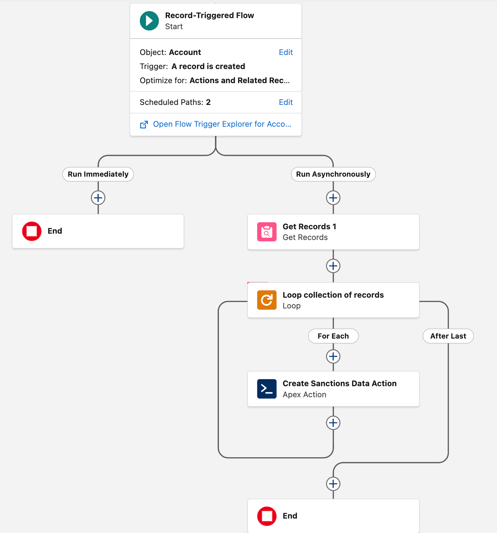
3. Click Add Asynchronous Path.

Inside the asynchronous path:
-
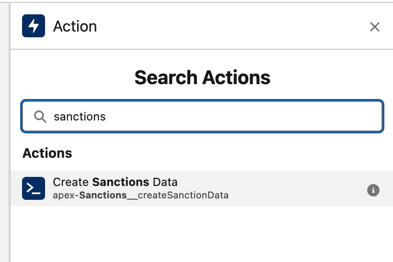
Click Add Element and select Action
-
Choose Create Sanctions Data (created by sanctions.io)
-
For a single record, pass the record ID directly into the action.
-
If you want to screen Multiple Records:
-
Add a Loop element in the flow
-
Pass one record ID at a time into the Create Sanctions Data action
-
Notify Users of Screening Alerts (Flows)
Our built-in notification functionality allows alerts to be sent to a predefined list of email addresses when new screening alerts are detected. Flows allow you to further customize notifications by alerting users directly associated with the flagged record, such as the Account Manager or Record Owner.
These notifications can be delivered via Email, Chatter, or Slack (if Slack for Salesforce is enabled in your organization).
How to set it up
To notify users associated with the flagged record.
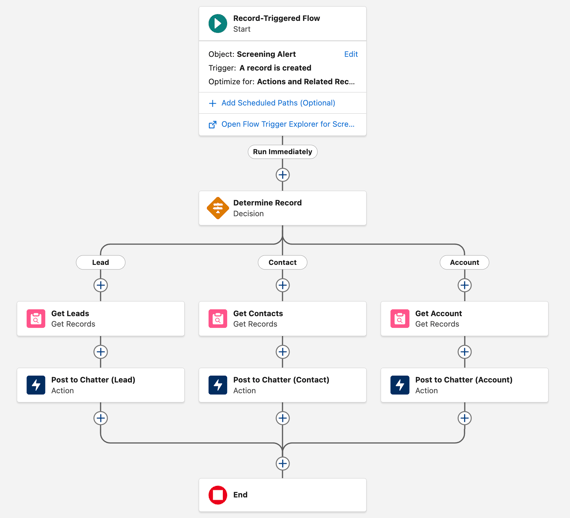
1. Create a Salesforce Flow and configure it to trigger when a new screening alert record is created.
2. Add a Decision Element to determine whether the alert is related to a Lead, Contact, or Account.
3. Retrieve the related Record for each decision path:
-
Use Get Records to retrieve the corresponding Lead, Contact, or Account using the record ID.
4. Send the Notification. Use one of the following flow actions with custom message templates:
-
-
Email (to record owners or related users)
-
Slack (send messages to users or channels, if enabled)
-
Chatter (post directly to the record or user feed)
-
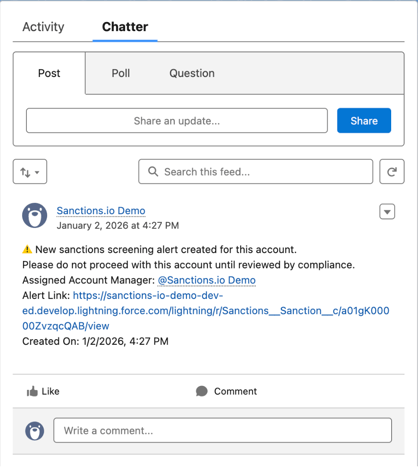
Notifications can be targeted to specific roles such as Account Managers, Lead Owners, or SDRs, ensuring the right people are informed as soon as a screening alert is generated.
Enforce Screening Requirements Before Opportunity Close (Flows)
Many compliance procedures mandate that sanctions screenings are up to date before a deal is marked Closed Won or before customer onboarding is completed.
With Salesforce Record-Triggered Flow, you can automatically prevent users from closing an Opportunity if the Account or any required Contacts (linked to that Account) haven't been screened within your organization's specified timeframe (for example, the last 7, 15, or 30 days).
What this automation does
When a user updates an Opportunity to a closing stage (such as Closed Won), the Flow checks screening currency and blocks the update if:
-
The Account has no screening date, or the last screening date is older than your required window, and/or
-
One or more required_ui Contacts on the Account (depending on your rules) are missing a recent screening.
If the criteria aren't met, the Flow prevents the stage change and shows a clear error message instructing the user to screen/re-screen the Account/Contacts before closing.
Common Use Cases
-
Your policy requires fresh screening prior to onboarding or contract signature.
-
Sales teams must not bypass compliance checks at the end of the pipeline.
-
You want a consistent control that applies regardless of user role or process path.
How to set it up
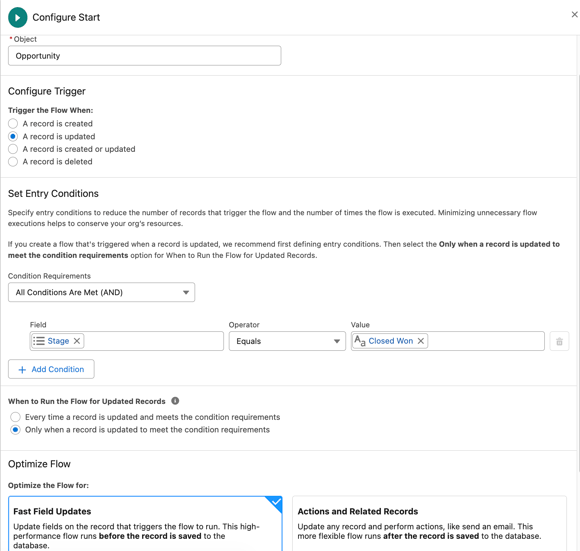
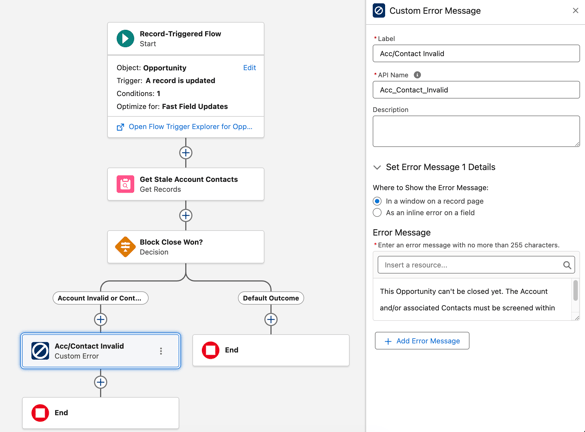
1. Create a Record-Triggered Flow on Opportunity.
2. Configure it to run when the record is updated.
3. Set to meet the conditions requirements, only when the Opportunity is moving into a "closing" stage (example: Stage equals to Closed Won).
4. Optimize the Flow for fast field updates (before-save validation).
5. Create two Resources to use in your Flow logic:
-
AccountDateInvalid(Formula – Boolean)
Use this to determine whether the Account's last screening date is outdated. In this example, the Account is considered invalid if it has never been screened or if the last screening happened more than 7 days ago.
Adjust the 7-day window to match your compliance requirements.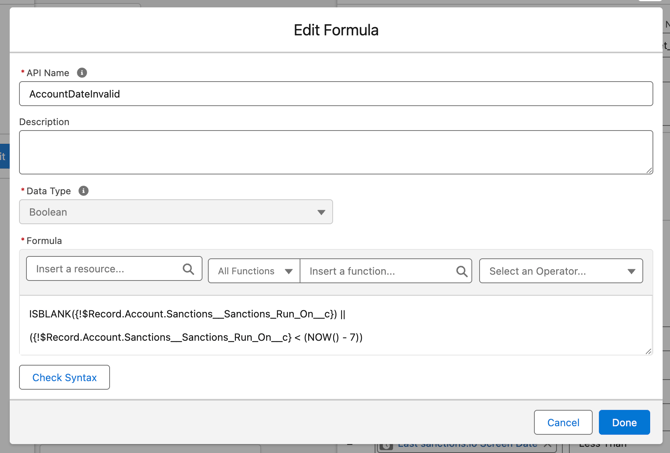
-
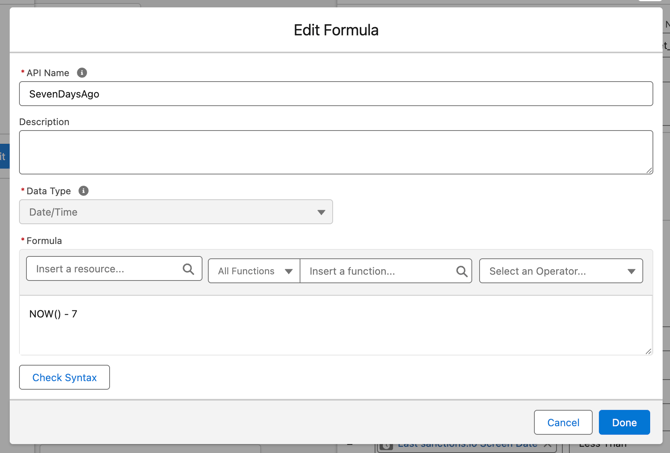
SevenDaysAgo(Formula – Date)Use this as a reference date when checking whether related Contact screening dates fall within the required timeframe. In this example, it represents the date 7 days before today. Adjust this timeframe as needed.
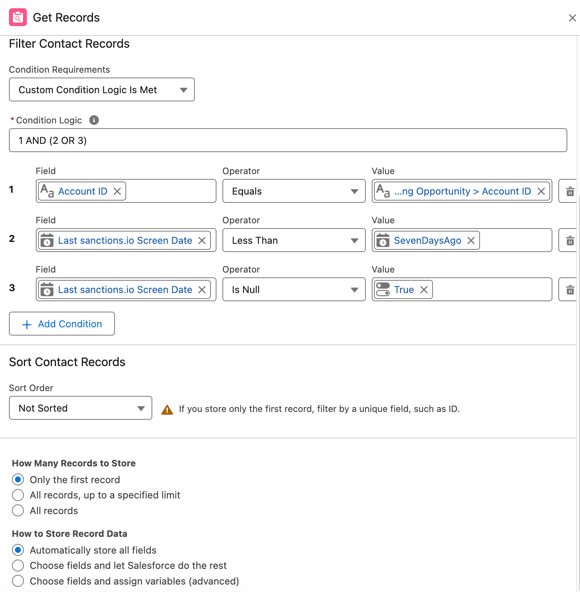
6. Add a Get Records element to retrieve the Contacts associated with the Opportunity's Account that are missing a valid screening. The Contacts you consider in-scope (for example, key contacts or all active contacts on the Account).
Filter Contact Records so you only retrieve contacts where:
-
-
AccountId equals the Opportunity's Account (the Account on the Opportunity), and
-
-
-
The Contact is not compliant, meaning either:
-
The Contact's last screening date is older than your allowed timeframe (e.g., before
SevenDaysAgo), or -
The Contact has never been screened (screening date is blank).
-
-
7. Add a Decision element to determine whether the Opportunity can proceed to closing.
Configure the decision to evaluate the following conditions:
-
-
Account screening is invalid
Use theAccountDateInvalidformula resource to check whether the Account's last screening date is outside the acceptable timeframe.
OR -
One or more related Contacts are not compliant
Check whether the Get Records element returned any Contact records that were not screened or were screened before the accepted date range.
-
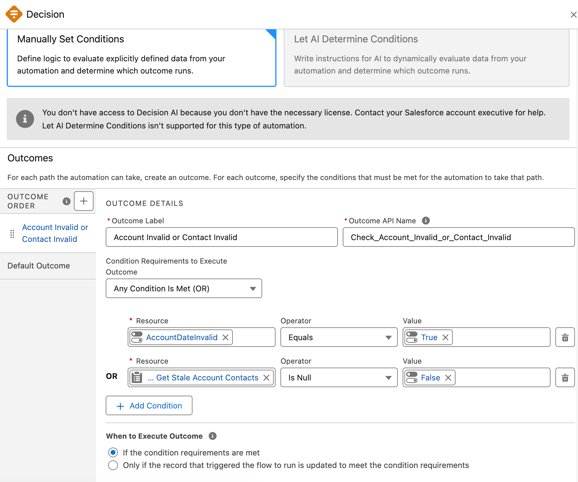
If either condition is true, the Decision outcome should route the Flow to a path that blocks the Opportunity from closing.
8. If screening is not current, add a custom error to the record to block the update and provide a user-friendly message.
Example error message
“This Opportunity can't be closed yet. The Account and/or associated Contacts must be screened within the last X days. Please run screening and try again.”
We're here to help!
We offer hands-on onboarding support and can guide you through configuring the integration to match your specific use case.
For any additional questions or further assistance, please don't hesitate to reach out to our support team.
-
Chat: Available directly in the 'Help Center' page
-
Email: help@sanctions.io