
The Screening Metrics feature gives you visibility into your sanctions screening activity directly within Salesforce. You can track how many screening requests (API calls) have been made, how many records were screened, and how many of those screenings returned alerts, broken down by object type (Lead, Contact, or Account) and date.
Please note: metrics are only available for screenings processed after this feature is enabled in your account. This requires upgrading to the package version released on February 27, 2026. Screenings completed before the upgrade, or while using an older version, won’t be included.
Benefits
Visibility & Monitoring: Gain clear visibility into how your screening package is being used.
Usage Insights: Understand exactly how screening requests are being consumed across your organization.
Reporting: Build custom dashboards to report screening activity back to your stakeholders.
Scalability & Control: Monitor consumption trends over time to anticipate needs and stay ahead of limits.
What Gets Tracked
Each day, the system automatically records the following metrics per object type:
| Field | Description |
|---|---|
| Date | The date the screenings occurred. |
| Object Type | The type of record screened: Lead, Contact, or Account. |
| API Call Count | Total number of screening requests made. Every screening attempt counts, even if results are dismissed. |
| Total Records Screened | Number of records where screening results were saved. |
| Records with New Screening Alerts | Number of records where screening results were found and saved. |
How counts differ by screening method
- Trigger, Flow, and Batch screenings: All three metrics are incremented whenever a record is screened or re-screened.
- sanctions.io Screening: If you screen a record via the sanctions.io Screening action button but then cancel or close without saving the results, the API Call Count still increments, but Total Records Screened and Records with New Screening Alerts do not — since no results were saved.
This means API Call Count may be higher than Total Records Screened if users frequently dismiss popup results without saving.
Create a Screening Metrics Report
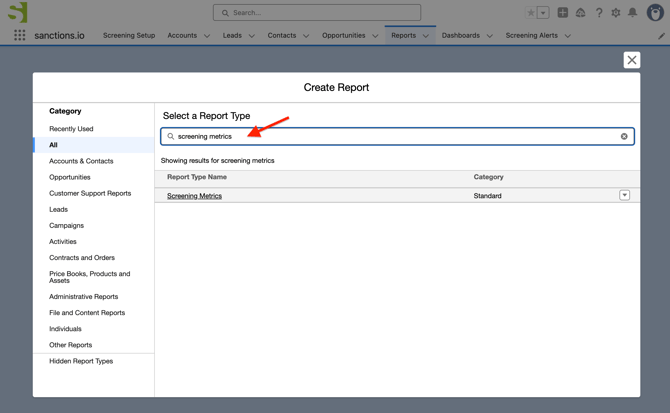
1. In Salesforce, navigate to Reports and create a new report. Search for "Screening Metrics" and select it from the list.
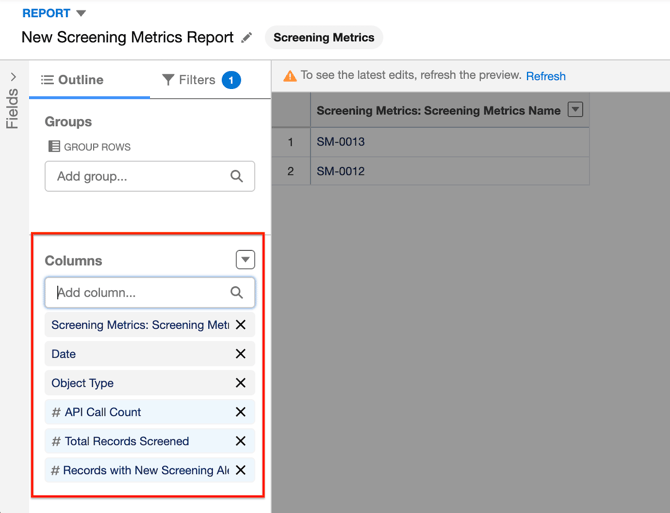
2. In the report builder, include the following columns:
- Date
- Object Type
- API Call Count
- Total Records Screened
- Records with New Screening Alerts
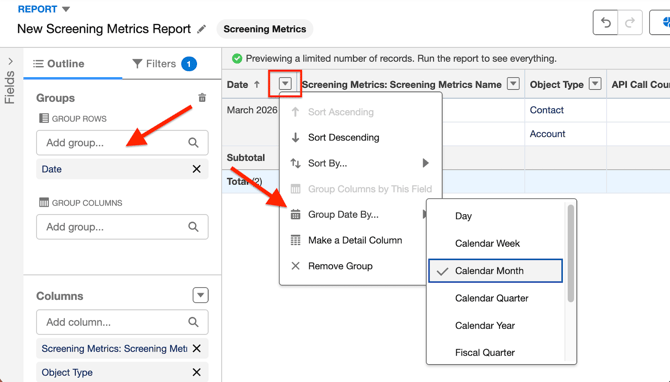
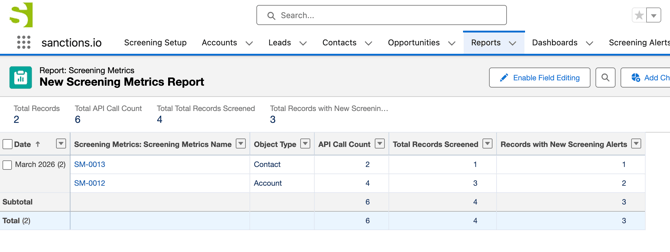
3. Group rows by Date. Then, on the Date column, select Group Date By → Calendar Month. This will aggregate your metrics by month, making it easier to spot trends over time.
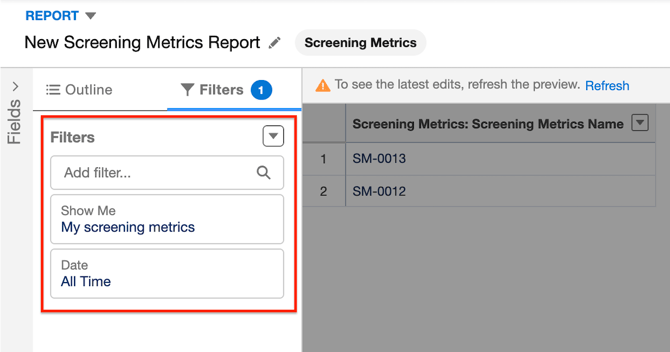
4. Open the Filters panel and ensure Show Me is set to All Screening Metrics. Set the Date filter to All Time (or adjust to your desired date range).
5. Click Save & Run to execute the report. You'll see a summary of screening activity with subtotals per month and a grand total at the bottom.
We're here to help!
If you have any questions or require further assistance, please don't hesitate to reach out to our support team.
-
Chat: Available directly on the Help Center page
-
Email: help@sanctions.io
Related Articles
Automate Sanctions Screening Processes with Salesforce Flows