
Automations let sanctions.io act on screening results for you. When an order or a customer is screened, the app checks your automations and, if the conditions match, tags, flags, or holds the order or customer in Shopify.
Automations run after auto-screening of new orders and customers and after manual screening. They do not run for historical orders.
The Automations page lists every automation with its trigger, sources, actions, and status.
In this article
→ Create an Automation
→ How an Automation Works
→ Automation Examples
→ Action Runs
Create an Automation
- Click Add automation.
- Enter an Automation name.
- Under When this happens, choose what to screen and the result that triggers the automation.
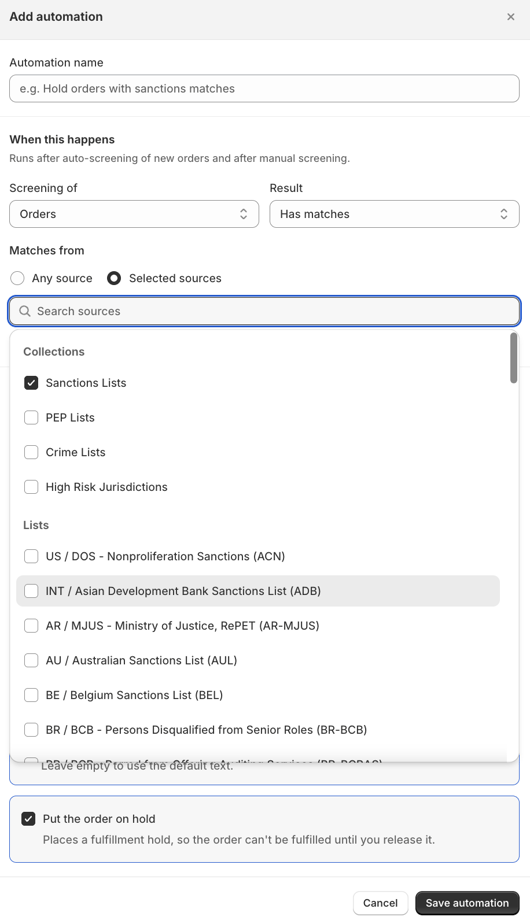
- Under Matches from, choose Any source or Selected sources. If you choose selected sources, select the collections or lists you want.
- Choose the actions to apply, then click Save automation.
To edit an existing automation, click ⋯ in its row.
If auto-screening for new customers is off, customer automations run only after manual screening. The page shows a warning in this case.
How an Automation Works
Each automation is a simple rule: When this happens → Then do this.
1. When This Happens
| Setting | Options |
|---|---|
| Screening of | Orders or Customers |
| Result |
|
| Matches from |
|
With Selected sources, you can choose whole collections (Sanctions Lists, PEP Lists, Crime Lists, High-Risk Jurisdictions) or individual lists, such as OFAC or the Australian Sanctions List. Use the search field to find a list.
2. Then Do This
Pick one or more actions.
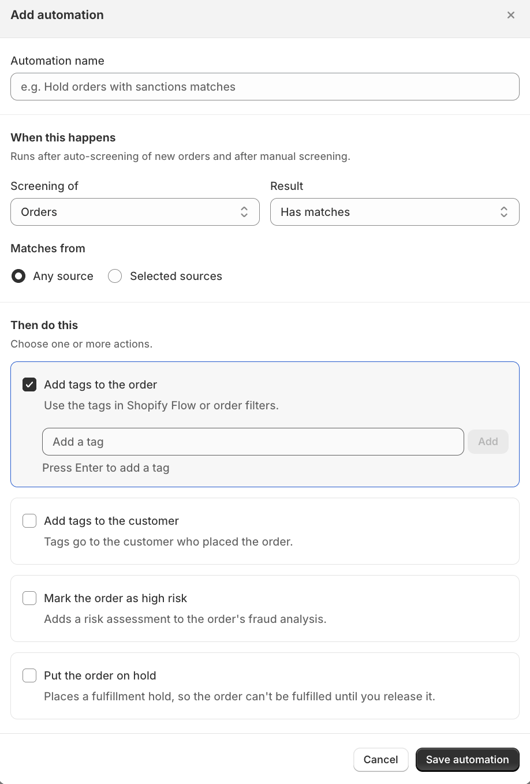
For Orders (four actions):
| Action | What it does |
|---|---|
| Add tags to the order | Adds your tags to the order. Use them in Shopify Flow or in order filters. |
| Add tags to the customer | Adds your tags to the customer who placed the order. |
| Mark the order as high risk | Adds a risk assessment to the order's fraud analysis. |
| Put the order on hold | Places a fulfillment hold, so the order can't be fulfilled until you release it. |
For Customers (one action):
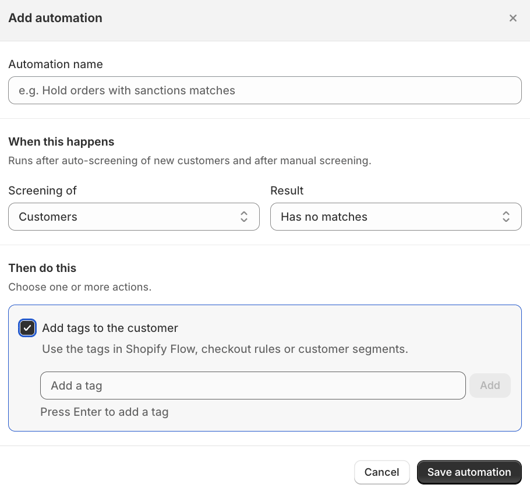
| Action | What it does |
|---|---|
| Add tags to the customer | Adds your tags to the customer. Use them in Shopify Flow, checkout rules, or customer segments. |
Risk Text for High-Risk Orders
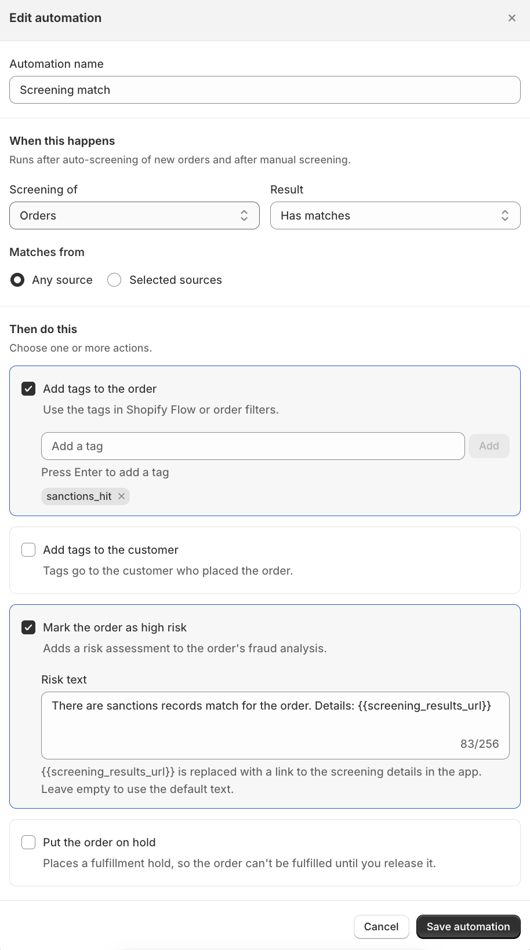
When you choose Mark the order as high risk, you can write your own risk text (up to 256 characters).
The screening_results_url placeholder is replaced with a link to the screening details in the app. Keep the placeholder exactly as shown, including the double curly braces on both sides.
Leave the field empty to use the default text.
Automation Examples
| Name | Trigger | Sources | Actions |
|---|---|---|---|
| Screening match | Order screening, has matches | Any source | Tag the order sanctions_hit and mark it as high risk |
| Flag for review | Order screening, has matches | 3 selected sources | Tag the order |
| Sanctioned order on hold | Order screening, has matches | Sanctions Lists | Put the order on hold |
| No match for customer | Customer screening, has no matches | — | Tag the customer |
Action Runs
Each time an automation runs, the app records it in the Action runs log. The log shows which order or customer triggered the automation, when it ran, and which actions were taken.
Search by order number or name, or filter the log by automation.
We're here to help!
If you have any questions or require further assistance, please don't hesitate to reach out to our support team.
- Chat: Available directly on the Help Center page
- Email: help@sanctions.io