
You can add individuals, organizations, vessels, or aircraft to Monitoring in three ways: manually, through a batch upload, or via the API.
In this article:
→ Manual Entry
→ Batch Upload
→ API Integration
Manual Entry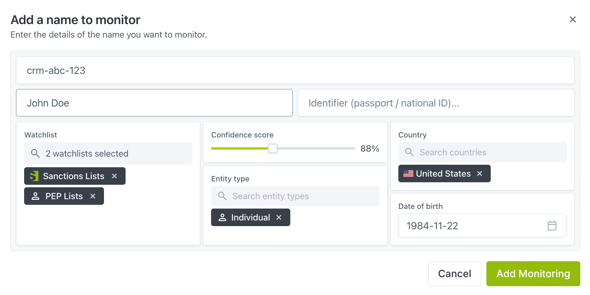
Use manual entry to add a single individual or entity to Monitoring.
- In the top-right toolbar, click + Add Entry.
- In the Add a name to monitor modal, fill in the fields:
- External ID (optional) — Your internal reference ID (e.g., customer number, vendor ID). If left blank, the system generates one for you.
- Name to monitor (required) — The full name of the individual or the entity's registered name.
If you select Vessel as the entity type, this field is optional and can be left blank if unavailable (see the note below). - Identifier (optional) — A passport number, national ID, company registration number, or other unique identifier. This runs as a separate, parallel search alongside the name match. If the identifier alone matches a sanctions record, an alert is returned regardless of whether the name matches. This broadens your search, so use unique identifiers here to avoid false positives.
For vessels, enter the IMO number here rather than in the Name field. See How to Screen Aircraft and Vessels for full field guidance by entity type. - Watchlist (required; defaults to Sanctions Lists) — Search and select one or more watchlists to screen against.
- Confidence score (defaults to 88%) — Drag the slider to set the minimum match confidence threshold.
- Country (optional) — Search and select one or more countries associated with the entry.
- Entity type (optional but recommended) — Search and select Individual, Organization, Vessel, or Aircraft to improve match accuracy.
- Date of birth (optional; format YYYY-MM-DD) — Applies to individuals only. Type the date directly, or click the calendar icon to select it from the date picker.
- Click Add Monitoring to begin monitoring. The page status badge next to "Monitoring" will show Processing... while the entry is screened, and switch to All entries processed once complete.
Tip: More identifiers (DOB, country, entity type) generally means fewer false positives and misses.
Batch Upload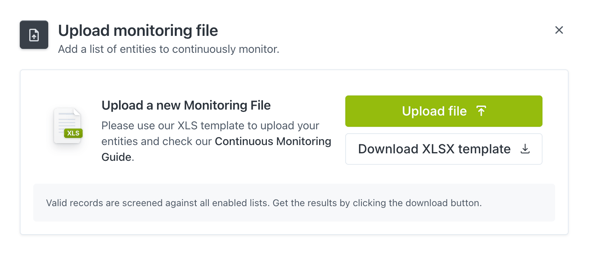
Use batch upload to add multiple entries at once.
-
In the top-right toolbar, click Upload batch file.
-
In the Upload monitoring file modal, click Download XLSX template to download a blank template.
Note: For a step-by-step guide on formatting your data correctly, see Screening Template: Prepare and Format your Data.
-
Format your entities using the XLSX template.
-
Click Upload file and select your completed file.
-
While your batch is processing, the page status badge next to "Monitoring" shows Processing..., and each new entry's Matches column shows "Processing..." until results are ready. Once complete, the badge switches to All entries processed.
-
You'll also receive a notification in the Notifications panel, and via email if email notifications are enabled on your account.
Important: Each batch supports up to 8,999 entries plus one header row (9,000 rows total).
API Integration
Connect your system to sanctions.io via the Monitoring API for automatic, ongoing syncing. See Monitoring API for setup instructions and full documentation.
We're here to help
If you have questions or need assistance, our support team is happy to help.
-
- Email: help@sanctions.io
- Chat: Available directly through the Help Center page