
Monitoring doesn't support editing an entry directly. Instead, delete entries and re-add them when their details change. This article covers how deletion works, how Monitoring treats new vs. updated entries, and how to update an entry correctly without creating duplicates.
In this article:
→ Delete a Monitored Entry
→ How Monitoring Handles New Entries and Updates
→ Update a Monitored Entry and Avoid Duplicates
Delete a Monitored Entry
Remove an entry when monitoring is no longer required. Deletion stops all monitoring activity and prevents future alerts for that entry.
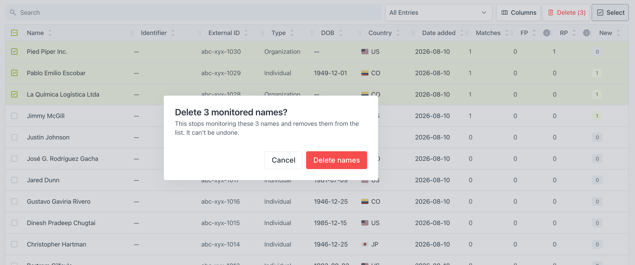
- In the Monitoring toolbar, click Select to enable checkboxes on the table. A disabled (greyed-out) Delete button also appears in the toolbar.
- Select one or more entries from the Monitoring list, or use the checkbox in the table header to select all entries at once. Double-check that you've selected the correct entries — this action cannot be undone.
- Once one or more entries are selected, the Delete (n) button becomes active (red). Click it to open a confirmation dialog, then click Delete names to confirm the deletion (or Cancel to back out).
Data Retention
When entries are deleted from Monitoring, they remain stored in our database until permanent deletion is confirmed. This retention is necessary to ensure data integrity, maintain a complete audit trail, and comply with regulatory requirements.
Permanent deletion occurs only when:
- You formally request deletion from sanctions.io, or
- Your subscription plan ends or is cancelled.
Once permanently deleted, the entry and its history cannot be recovered. To request permanent deletion, contact our support team at help@sanctions.io.
How Monitoring Handles New Entries and Updates
Monitoring does not support updating or overwriting existing entries, even when external identifiers are the same.
Every upload is processed as a new entry to preserve a complete audit trail.
Warning: Each uploaded entry counts toward your subscription plan's screening package. If you need to perform a bulk re-upload that may significantly impact your usage, contact our team at help@sanctions.io before proceeding.
Update a Monitored Entry and Avoid Duplicates
If an entity's key identifying information changes (including name corrections or the addition of new identification fields), the corresponding entry should be updated to maintain accuracy and regulatory compliance.
-
Add the Updated Entry
Add the corrected version of the entry with the updated details (e.g., a name correction, a new identification number, or an updated date of birth), either manually or via batch upload. This approach ensures monitoring continues without interruption.
-
Confirm the Updated Entry Is Active
Verify that the updated entry has been successfully added and is actively monitored. It will appear in the Monitoring list with a new Date added, and any associated matches will be listed as New (if any).
-
Delete the Outdated Entry
Once the updated entry is active, delete the outdated version. The deleted entry becomes inactive and is no longer monitored, but is securely retained in our system for audit and traceability purposes.
This process prevents duplicate entries, ensures accurate monitoring results, and preserves a complete and compliant audit trail.
Best Practices
| Do | Avoid |
|---|---|
| ✅ Perform a data quality check before any upload | ❌ Re-uploading existing entries solely for data-cleaning purposes |
| ✅ Re-upload entries only when key identifying information has changed | ❌ Uploading unchanged entries "just in case" |
| ✅ Upload only the specific entry that requires correction | ❌ Updating multiple entries when only one has changed |
Note: The External Identifier field is designed to help you trace monitored entries back to your internal systems. It is not used to de-duplicate or modify existing entries within the portal.
We're here to help!
If you have any questions or require further assistance, please don't hesitate to reach out to our support team:
- Chat: Available directly in the Help Center page
- Email: help@sanctions.io