
Monitoring lets you review the details of each screening alert and record your compliance decisions directly in the portal.
For an overview of what triggers an alert and how often they're generated, see Alerts and Notifications in Monitoring.
In this article:
→ View Match Details
→ Audit a Result
View Match Details
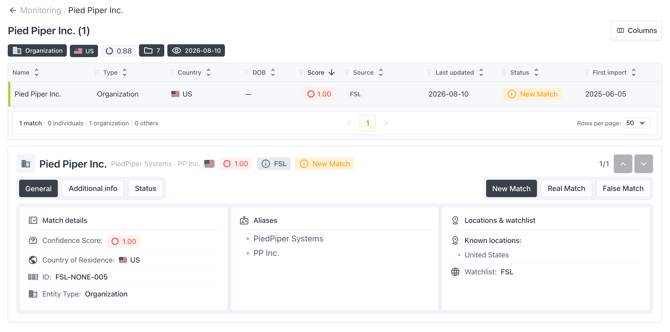
To review screening results for a monitored entry:
- In the Monitoring list, locate an entry that has one or more matches.
- Click on the entry to open its match detail page.
- The General tab shows:
- Match Details → Confidence score, country of residence, date of birth, ID, and entity type.
- Aliases → Alternative names associated with the match.
- Locations & Watchlist → Known locations and the source watchlist (e.g., SDN, UK-SANCTIONS). Click the watchlist name to open the source list.
- Check the Additional info tab for further details specific to the match. Depending on the entity and watchlist, this may include regime, sanctioned positions, asset freeze status, name type, unique ID, and a narrative remark describing the listing, or, for other entity types, fields like gender or associated cryptocurrency transaction addresses.
Tip: Use the up/down arrows in the top-right corner to move between multiple matches of the same entry.
Audit a Result
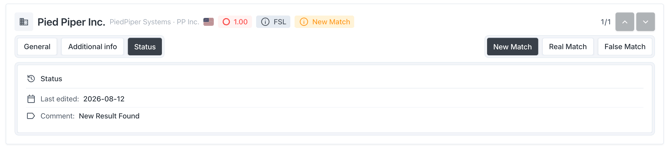
After reviewing the match, classify it and, if needed, document your decision.
- On the match detail page, click one of the status buttons in the top-right: New Match, Real Match, or False Match.
- In the Update status dialog, add an optional note in the Comment field.
- Click Save changes to confirm, or Cancel to back out.
- The new status and comment appear on the Status tab, along with the Last edited date.
Note: Once a match result exists for an entry, future alerts for that same result are automatically suppressed, regardless of how it's classified. You won't be re-alerted on a result you've already seen, unless the entry is re-uploaded, which creates a new entry and a new, unsuppressed result. See Delete & Update Monitored Entries for how re-uploads are handled.
We're here to help!
If you have any questions or need more help, please contact our support team anytime!
- Chat: Available directly through the Help Center page
- Email: help@sanctions.io