
This article covers how to review match results after running a Single Screening.
When Single Screening finds one or more matches, they appear in the Matches table below the search bar, followed by a detail panel for the match you select.
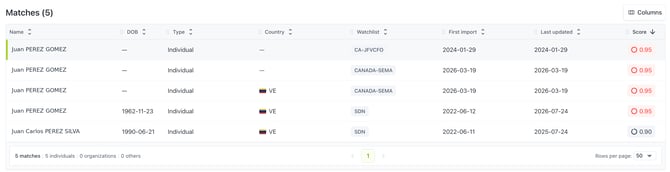
Matches
The table lists every match found, with columns for:
- Name — the name as it appears on the watchlist
- DOB — date of birth, where available
- Type — entity type (e.g., Individual, Organization)
- Country — the country or countries associated with the record, if any
- Watchlist — the watchlist where the match was found (e.g., SDN, PEP)
- Last updated — when the watchlist record was last updated by the issuing authority
- Score — the confidence score indicates how closely the watchlist record matches the data you submitted. It's a weighted result across all search parameters, not the name alone. It's color-coded, making higher-risk matches easy to spot in the table. Only matches at or above your configured threshold appear here.
Click any column header to sort by that field. Use Columns (top right of the table) to choose which fields are shown.
A summary line below the table (e.g., "1 match | 0 individuals | 1 organization | 0 others") shows the composition of your results at a glance, without opening each match.
Viewing match details
Click any row to display its details in the panel below the table. The panel header shows the entity name, country flag, Confidence Score, and Watchlist badge, plus two tabs:
General — core match data, organized into:
- Match details — Confidence Score, Country, DOB, ID, Entity Type, and Listing Identifiers
- Aliases — other names on record for the same entity, if any
- Locations & watchlist — known locations, if any
- Watchlist — the matched watchlist (e.g., SDN), shown as a link out to the data source for that list
Additional info — richer supplementary data when available in the source record (for example, Tax ID, Organization type, Legal entity number, Registration number, established date, and remarks).
If your search returns more than one match, use the up/down navigation controls in the panel (e.g., "1/7") to step through each match without returning to the table.
Note: The availability of information depends on what the issuing authority has published. sanctions.io displays the data exactly as provided by the original source.
Next step: Ready to save or share your results? See Download a Screening Report.
We're here to help
If you have questions or need assistance, our support team is happy to help.
-
- Email: help@sanctions.io
- Chat: Available directly through the Help Center page