
This article explains how to export your results after running a search in Single Screening. See View Match Details in Your Screening Results if you haven't reviewed your matches yet.
Results are immediately accessible on the portal, and you can download them as a PDF Screening Report.
What's in your PDF Screening Report
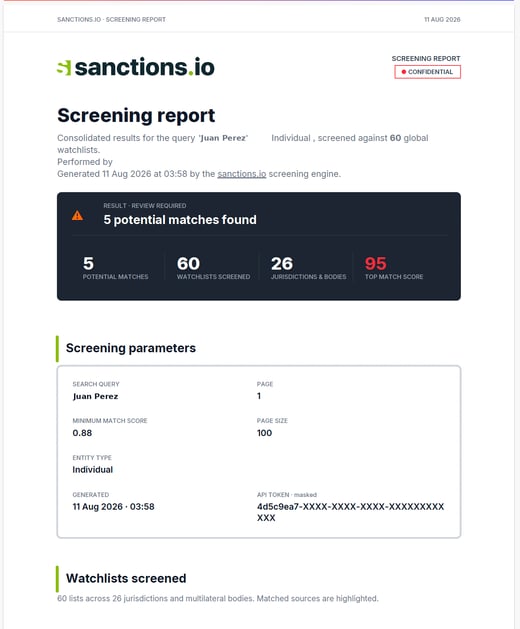
The Screening Report is a branded, structured document designed to be shared as-is with auditors, regulators, or internal reviewers. Each report includes:
- A plain-language summary line — states what was screened, how many watchlists were checked, who ran the search, and when (e.g., "Performed by [email]. Generated [date] at [time] by the sanctions.io screening engine.").
- An at-a-glance summary card — a result banner (e.g., "RESULT · REVIEW REQUIRED — 1 potential match found") with key stats: potential matches, watchlists screened, jurisdictions & bodies covered, and top match score.
When no matches are found, the banner instead shows a green checkmark with "RESULT · NO MATCHES — 0 matches found," and the Top Match Score field displays a dash (—). - A screening parameters card — search query, country, minimum match score, entity type, generation timestamp, and masked API token.
- A watchlist summary — the full list of screened watchlists shown as compact codes, with a link out to official data sources.
- Structured match cards — each potential match broken into an identity summary (name, akas, score, source), key facts (DOB, nationality, place of birth, program, designation, entity type, entity number, match confidence, SI identifier), and further detail (alternative names, gender, year of birth, country of residence, identification numbers, registered addresses, and last updated/first imported dates).
Generate and Download Your PDF Report
- From your search results, click Export PDF in the top-right corner.
- The portal processes your request and notifies you when it's ready.
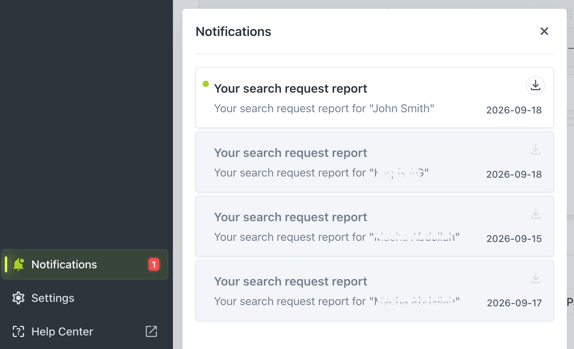
- Click Notifications to open the notifications panel.
- Find the entry titled "Your search request report" for your search query.
- Click the download icon next to the entry to download the PDF.
Additionally, the results are emailed to the address linked to your account for your convenience.
We're here to help
If you have questions or need assistance, our support team is happy to help.
- Email: help@sanctions.io
- Chat: Available directly through the Help Center page